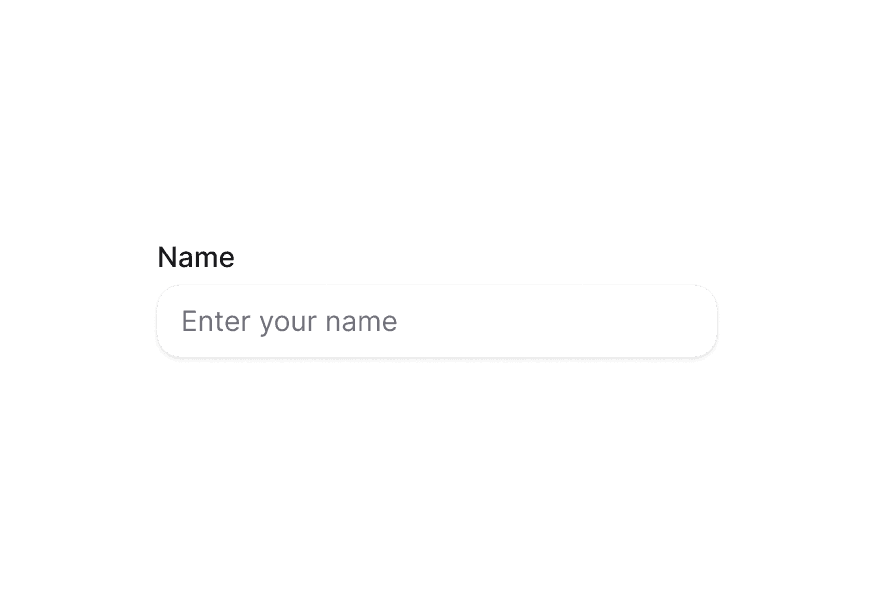
InputGroup
Group related input controls with prefix and suffix elements for enhanced form fields
Import
import { InputGroup } from '@heroui/react';Usage
"use client";

import {InputGroup, Label, TextField} from "@heroui/react";
import {Icon} from "@iconify/react";

export function Default() {
  return (
    <TextField className="w-full max-w-[280px]" name="email">
      <Label>Email address</Label>
      <InputGroup>
        <InputGroup.Prefix>
          <Icon className="text-muted size-4" icon="gravity-ui:envelope" />
        </InputGroup.Prefix>
        <InputGroup.Input className="w-full max-w-[280px]" placeholder="name@email.com" />
      </InputGroup>
    </TextField>
  );
}Anatomy
import {InputGroup, TextField, Label} from '@heroui/react';

export default () => (
  <TextField>
    <Label />
    <InputGroup>
      <InputGroup.Prefix />
      <InputGroup.Input />
      <InputGroup.Suffix />
    </InputGroup>
  </TextField>
)
InputGroup wraps an input field with optional prefix and suffix elements, creating a visually cohesive group. It's typically used within TextField to add icons, text, buttons, or other elements before or after the input.
With Prefix Icon
Add an icon before the input field.
"use client";

import {Description, InputGroup, Label, TextField} from "@heroui/react";
import {Icon} from "@iconify/react";

export function WithPrefixIcon() {
  return (
    <TextField className="w-full max-w-[280px]" name="email">
      <Label>Email address</Label>
      <InputGroup>
        <InputGroup.Prefix>
          <Icon className="text-muted size-4" icon="gravity-ui:envelope" />
        </InputGroup.Prefix>
        <InputGroup.Input className="w-full max-w-[280px]" placeholder="name@email.com" />
      </InputGroup>
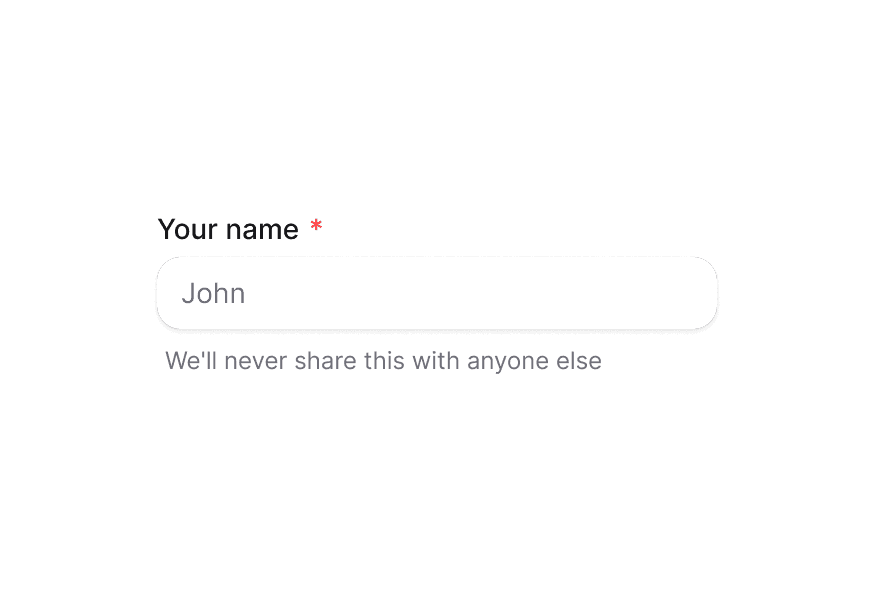
      <Description>We'll never share this with anyone else</Description>
    </TextField>
  );
}With Suffix Icon
Add an icon after the input field.
"use client";

import {Description, InputGroup, Label, TextField} from "@heroui/react";
import {Icon} from "@iconify/react";

export function WithSuffixIcon() {
  return (
    <TextField className="w-full max-w-[280px]" name="email">
      <Label>Email address</Label>
      <InputGroup>
        <InputGroup.Input className="w-full max-w-[280px]" placeholder="name@email.com" />
        <InputGroup.Suffix>
          <Icon className="text-muted size-4" icon="gravity-ui:envelope" />
        </InputGroup.Suffix>
      </InputGroup>
      <Description>We don't send spam</Description>
    </TextField>
  );
}With Prefix and Suffix
Combine both prefix and suffix elements.
"use client";

import {Description, InputGroup, Label, TextField} from "@heroui/react";

export function WithPrefixAndSuffix() {
  return (
    <TextField className="w-full max-w-[280px]" name="price">
      <Label>Set a price</Label>
      <InputGroup>
        <InputGroup.Prefix>$</InputGroup.Prefix>
        <InputGroup.Input className="w-full max-w-[200px]" defaultValue="10" type="number" />
        <InputGroup.Suffix>USD</InputGroup.Suffix>
      </InputGroup>
      <Description>What customers would pay</Description>
    </TextField>
  );
}Text Prefix
Use text as a prefix, such as currency symbols or protocol prefixes.
"use client";

import {InputGroup, Label, TextField} from "@heroui/react";

export function WithTextPrefix() {
  return (
    <TextField className="w-full max-w-[280px]" name="website">
      <Label>Website</Label>
      <InputGroup>
        <InputGroup.Prefix>https://</InputGroup.Prefix>
        <InputGroup.Input className="w-full max-w-[280px]" defaultValue="heroui.com" />
      </InputGroup>
    </TextField>
  );
}Text Suffix
Use text as a suffix, such as domain extensions or units.
"use client";

import {InputGroup, Label, TextField} from "@heroui/react";

export function WithTextSuffix() {
  return (
    <TextField className="w-full max-w-[280px]" name="website">
      <Label>Website</Label>
      <InputGroup>
        <InputGroup.Input className="w-full max-w-[280px]" defaultValue="heroui" />
        <InputGroup.Suffix>.com</InputGroup.Suffix>
      </InputGroup>
    </TextField>
  );
}Icon Prefix and Text Suffix
Combine an icon prefix with a text suffix.
"use client";

import {InputGroup, Label, TextField} from "@heroui/react";
import {Icon} from "@iconify/react";

export function WithIconPrefixAndTextSuffix() {
  return (
    <TextField className="w-full max-w-[280px]" name="website">
      <Label>Website</Label>
      <InputGroup>
        <InputGroup.Prefix>
          <Icon className="text-muted size-4" icon="gravity-ui:globe" />
        </InputGroup.Prefix>
        <InputGroup.Input className="w-full max-w-[280px]" defaultValue="heroui" />
        <InputGroup.Suffix>.com</InputGroup.Suffix>
      </InputGroup>
    </TextField>
  );
}Copy Button Suffix
Add an interactive button in the suffix, such as a copy button.
"use client";

import {Button, InputGroup, Label, TextField} from "@heroui/react";
import {Icon} from "@iconify/react";

export function WithCopySuffix() {
  return (
    <TextField className="w-full max-w-[280px]" name="website">
      <Label>Website</Label>
      <InputGroup>
        <InputGroup.Input className="w-full max-w-[280px]" defaultValue="heroui.com" />
        <InputGroup.Suffix className="pr-0">
          <Button isIconOnly aria-label="Copy" size="sm" variant="ghost">
            <Icon className="size-4" icon="gravity-ui:copy" />
          </Button>
        </InputGroup.Suffix>
      </InputGroup>
    </TextField>
  );
}Icon Prefix and Copy Button
Combine an icon prefix with an interactive button suffix.
"use client";

import {Button, InputGroup, Label, TextField} from "@heroui/react";
import {Icon} from "@iconify/react";

export function WithIconPrefixAndCopySuffix() {
  return (
    <TextField className="w-full max-w-[280px]" name="website">
      <Label>Website</Label>
      <InputGroup>
        <InputGroup.Prefix>
          <Icon className="text-muted size-4" icon="gravity-ui:globe" />
        </InputGroup.Prefix>
        <InputGroup.Input className="w-full max-w-[280px]" defaultValue="heroui.com" />
        <InputGroup.Suffix className="pr-0">
          <Button isIconOnly aria-label="Copy" size="sm" variant="ghost">
            <Icon className="size-4" icon="gravity-ui:copy" />
          </Button>
        </InputGroup.Suffix>
      </InputGroup>
    </TextField>
  );
}Password Toggle
Use a button in the suffix to toggle password visibility.
"use client";

import {Button, InputGroup, Label, TextField} from "@heroui/react";
import {Icon} from "@iconify/react";
import {useState} from "react";

export function PasswordWithToggle() {
  const [isVisible, setIsVisible] = useState(false);

  return (
    <TextField className="w-full max-w-[280px]" name="password">
      <Label>Password</Label>
      <InputGroup>
        <InputGroup.Input
          className="w-full max-w-[280px]"
          type={isVisible ? "text" : "password"}
          value={isVisible ? "87$2h.3diua" : "••••••••"}
        />
        <InputGroup.Suffix className="pr-0">
          <Button
            isIconOnly
            aria-label={isVisible ? "Hide password" : "Show password"}
            size="sm"
            variant="ghost"
            onPress={() => setIsVisible(!isVisible)}
          >
            <Icon className="size-4" icon={isVisible ? "gravity-ui:eye" : "gravity-ui:eye-slash"} />
          </Button>
        </InputGroup.Suffix>
      </InputGroup>
    </TextField>
  );
}Loading State
Show a loading spinner in the suffix to indicate processing.
"use client";

import {InputGroup, Spinner, TextField} from "@heroui/react";

export function WithLoadingSuffix() {
  return (
    <TextField className="w-full max-w-[280px]" name="status">
      <InputGroup>
        <InputGroup.Input className="w-full max-w-[280px]" defaultValue="Sending..." />
        <InputGroup.Suffix>
          <Spinner className="size-4" />
        </InputGroup.Suffix>
      </InputGroup>
    </TextField>
  );
}Keyboard Shortcut
Display keyboard shortcuts using the Kbd component.
"use client";

import {InputGroup, Kbd, TextField} from "@heroui/react";

export function WithKeyboardShortcut() {
  return (
    <TextField className="w-full max-w-[280px]" name="command">
      <InputGroup>
        <InputGroup.Input className="w-full max-w-[280px]" placeholder="Command" />
        <InputGroup.Suffix className="pr-2">
          <Kbd>
            <Kbd.Abbr keyValue="command" />
            <Kbd.Content>K</Kbd.Content>
          </Kbd>
        </InputGroup.Suffix>
      </InputGroup>
    </TextField>
  );
}Badge Suffix
Add a badge or chip in the suffix to show status or labels.
"use client";

import {Chip, InputGroup, TextField} from "@heroui/react";

export function WithBadgeSuffix() {
  return (
    <TextField className="w-full max-w-[280px]" name="email">
      <InputGroup>
        <InputGroup.Input className="w-full max-w-[280px]" placeholder="Email address" />
        <InputGroup.Suffix className="pr-2">
          <Chip color="accent" size="md" variant="soft">
            Pro
          </Chip>
        </InputGroup.Suffix>
      </InputGroup>
    </TextField>
  );
}Required Field
InputGroup respects the required state from its parent TextField.
"use client";

import {Description, InputGroup, Label, TextField} from "@heroui/react";
import {Icon} from "@iconify/react";

export function Required() {
  return (
    <div className="flex flex-col gap-4">
      <TextField isRequired className="w-full max-w-[280px]" name="email">
        <Label>Email address</Label>
        <InputGroup>
          <InputGroup.Prefix>
            <Icon className="text-muted size-4" icon="gravity-ui:envelope" />
          </InputGroup.Prefix>
          <InputGroup.Input className="w-full max-w-[280px]" placeholder="name@email.com" />
        </InputGroup>
      </TextField>
      <TextField isRequired className="w-full max-w-[280px]" name="price">
        <Label>Set a price</Label>
        <InputGroup>
          <InputGroup.Prefix>$</InputGroup.Prefix>
          <InputGroup.Input className="w-full max-w-[200px]" placeholder="0" type="number" />
          <InputGroup.Suffix>USD</InputGroup.Suffix>
        </InputGroup>
        <Description>What customers would pay</Description>
      </TextField>
    </div>
  );
}Validation
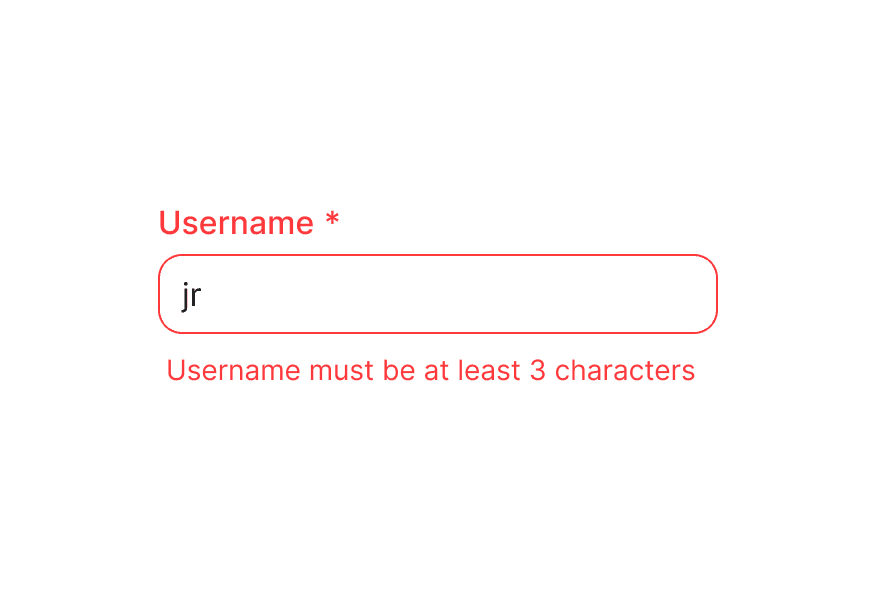
InputGroup automatically reflects invalid state from its parent TextField.
"use client";

import {FieldError, InputGroup, Label, TextField} from "@heroui/react";
import {Icon} from "@iconify/react";

export function Invalid() {
  return (
    <div className="flex flex-col gap-4">
      <TextField isInvalid isRequired className="w-full max-w-[280px]" name="email">
        <Label>Email address</Label>
        <InputGroup>
          <InputGroup.Prefix>
            <Icon className="text-muted size-4" icon="gravity-ui:envelope" />
          </InputGroup.Prefix>
          <InputGroup.Input className="w-full max-w-[280px]" placeholder="name@email.com" />
        </InputGroup>
        <FieldError>Please enter a valid email address</FieldError>
      </TextField>
      <TextField isInvalid isRequired className="w-full max-w-[280px]" name="price">
        <Label>Set a price</Label>
        <InputGroup>
          <InputGroup.Prefix>$</InputGroup.Prefix>
          <InputGroup.Input className="w-full max-w-[200px]" placeholder="0" type="number" />
          <InputGroup.Suffix>USD</InputGroup.Suffix>
        </InputGroup>
        <FieldError>Price must be greater than 0</FieldError>
      </TextField>
    </div>
  );
}Disabled State
InputGroup respects the disabled state from its parent TextField.
"use client";

import {InputGroup, Label, TextField} from "@heroui/react";
import {Icon} from "@iconify/react";

export function Disabled() {
  return (
    <div className="flex flex-col gap-4">
      <TextField isDisabled className="w-full max-w-[280px]" name="email">
        <Label>Email address</Label>
        <InputGroup>
          <InputGroup.Prefix>
            <Icon className="text-muted size-4" icon="gravity-ui:envelope" />
          </InputGroup.Prefix>
          <InputGroup.Input className="w-full max-w-[280px]" defaultValue="name@email.com" />
        </InputGroup>
      </TextField>
      <TextField isDisabled className="w-full max-w-[280px]" name="price">
        <Label>Set a price</Label>
        <InputGroup>
          <InputGroup.Prefix>$</InputGroup.Prefix>
          <InputGroup.Input className="w-full max-w-[200px]" defaultValue="10" type="number" />
          <InputGroup.Suffix>USD</InputGroup.Suffix>
        </InputGroup>
      </TextField>
    </div>
  );
}On Surface
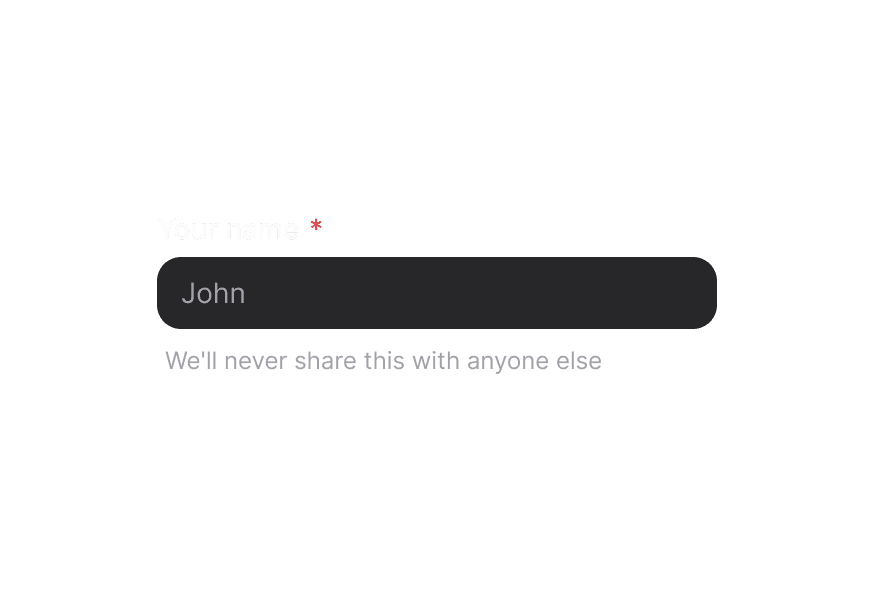
When used inside a Surface component, InputGroup automatically applies on-surface styling. You can also manually control this with the isOnSurface prop.
"use client";

import {Description, InputGroup, Label, Surface, TextField} from "@heroui/react";
import {Icon} from "@iconify/react";

export function OnSurface() {
  return (
    <Surface className="rounded-2xl p-6">
      <TextField className="w-full max-w-[280px]" name="email">
        <Label>Email address</Label>
        <InputGroup isOnSurface>
          <InputGroup.Prefix>
            <Icon className="text-muted size-4" icon="gravity-ui:envelope" />
          </InputGroup.Prefix>
          <InputGroup.Input className="w-full max-w-[280px]" placeholder="name@email.com" />
        </InputGroup>
        <Description>We'll never share this with anyone else</Description>
      </TextField>
    </Surface>
  );
}Styling
Passing Tailwind CSS classes
import {InputGroup, TextField, Label} from '@heroui/react';

function CustomInputGroup() {
  return (
    <TextField>
      <Label>Website</Label>
      <InputGroup className="rounded-xl border-2 border-primary">
        <InputGroup.Prefix className="bg-primary/10 text-primary">
          https://
        </InputGroup.Prefix>
        <InputGroup.Input className="font-medium" />
        <InputGroup.Suffix className="bg-primary/10 text-primary">
          .com
        </InputGroup.Suffix>
      </InputGroup>
    </TextField>
  );
}
Customizing the component classes
InputGroup uses CSS classes that can be customized. Override the component classes to match your design system.
@layer components {
  .input-group {
    @apply bg-field text-field-foreground shadow-field rounded-field inline-flex h-9 items-center overflow-hidden border text-sm outline-none;
  }

  .input-group__input {
    @apply flex-1 rounded-none border-0 bg-transparent px-3 py-2 shadow-none outline-none;
  }

  .input-group__prefix {
    @apply text-field-placeholder rounded-l-field flex h-full items-center justify-center rounded-r-none bg-transparent px-3;
  }

  .input-group__suffix {
    @apply text-field-placeholder rounded-r-field flex h-full items-center justify-center rounded-l-none bg-transparent px-3;
  }

  /* On surface variant */
  .input-group--on-surface {
    @apply bg-on-surface shadow-none;
  }
}
CSS Classes
.input-group– Root container with border, background, and flex layout.input-group__input– Input element with transparent background and no border.input-group__prefix– Prefix container with left border radius.input-group__suffix– Suffix container with right border radius.input-group--on-surface– Variant for use on surface backgrounds
Interactive States
InputGroup automatically manages these data attributes based on its state:
- Hover:
[data-hovered]- Applied when hovering over the group - Focus Within:
[data-focus-within]- Applied when the input is focused - Invalid:
[data-invalid]- Applied when parent TextField is invalid - Disabled:
[data-disabled]or[aria-disabled]- Applied when parent TextField is disabled
API Reference
InputGroup Props
InputGroup inherits all props from React Aria's Group component.
Base Props
| Prop | Type | Default | Description |
|---|---|---|---|
children | React.ReactNode | (values: GroupRenderProps) => React.ReactNode | - | Child components (Input, Prefix, Suffix) or render function. |
className | string | (values: GroupRenderProps) => string | - | CSS classes for styling, supports render props. |
style | React.CSSProperties | (values: GroupRenderProps) => React.CSSProperties | - | Inline styles, supports render props. |
id | string | - | The element's unique identifier. |
Variant Props
| Prop | Type | Default | Description |
|---|---|---|---|
isOnSurface | boolean | - | Whether the group is displayed on a surface background. Automatically detected when inside a Surface component. |
Accessibility Props
| Prop | Type | Default | Description |
|---|---|---|---|
aria-label | string | - | Accessibility label when no visible label is present. |
aria-labelledby | string | - | ID of elements that label this group. |
aria-describedby | string | - | ID of elements that describe this group. |
aria-details | string | - | ID of elements with additional details. |
role | 'group' | 'region' | 'presentation' | 'group' | Accessibility role for the group. Use 'region' for important content, 'presentation' for visual-only grouping. |
Composition Components
InputGroup works with these subcomponents:
- InputGroup.Root - Root container (also available as
InputGroup) - InputGroup.Input - Input element component
- InputGroup.Prefix - Prefix container component
- InputGroup.Suffix - Suffix container component
InputGroup.Input Props
InputGroup.Input inherits all props from React Aria's Input component.
| Prop | Type | Default | Description |
|---|---|---|---|
className | string | - | CSS classes for styling. |
isOnSurface | boolean | - | Whether the input is displayed on a surface background. |
type | string | 'text' | Input type (text, password, email, etc.). |
value | string | - | Current value (controlled). |
defaultValue | string | - | Default value (uncontrolled). |
placeholder | string | - | Placeholder text. |
disabled | boolean | - | Whether the input is disabled. |
readOnly | boolean | - | Whether the input is read-only. |
InputGroup.Prefix Props
| Prop | Type | Default | Description |
|---|---|---|---|
children | React.ReactNode | - | Content to display in the prefix (icons, text, etc.). |
className | string | - | CSS classes for styling. |
InputGroup.Suffix Props
| Prop | Type | Default | Description |
|---|---|---|---|
children | React.ReactNode | - | Content to display in the suffix (icons, buttons, badges, etc.). |
className | string | - | CSS classes for styling. |
Usage Example
import {InputGroup, TextField, Label, Button} from '@heroui/react';
import {Icon} from '@iconify/react';

function Example() {
  return (
    <TextField>
      <Label>Email</Label>
      <InputGroup>
        <InputGroup.Prefix>
          <Icon icon="gravity-ui:envelope" />
        </InputGroup.Prefix>
        <InputGroup.Input placeholder="name@email.com" />
        <InputGroup.Suffix>
          <Button isIconOnly size="sm" variant="ghost">
            <Icon icon="gravity-ui:check" />
          </Button>
        </InputGroup.Suffix>
      </InputGroup>
    </TextField>
  );
}